недеља, 2. јул 2017.

Home weather net

There is a followup of this post.
When I purchased Raspberry Pi starter kit couple of years ago, I got the DS18B20 sensor with it. It is a simple device, three pins only, uses one-wire protocol to send the measured temperature to the host computer. There are plenty of tutorials how to use it with the Raspberry Pi. 

I have connected that one sensor to the PI and was able to read the temperature.

Then I have purchased more DS18B20 sensors and placed one outside, in the shadow.


Then I have purchased DHT11 combined sensor for both temperature and humidity.

DHT11 sensor has a nice support for Python in this library.

Now I have four sensors, two for the inside temperature, one for the outside temperature, and one for the inside humidity. The next step was to make some web site for temperature reading. I have created a small web server which gathers data from all four sensors and displays it in two ways: gauges and charts:
This is nice, but I wanted an instant readout of the temperature, without a need for grabbing the nearest mobile phone, tablet, or computer and navigating to the web server. Then I remembered that I have two old Samsung Android phones: Samsung Galaxy Ace and Samsung Galaxy S+. Both have old Andorid OS, v2.3.6. Both have so small amount of RAM, that they are useless now (especially the Galaxy Ace). So, I have uninstalled everything and installed my own custom application, so those phones now have a new purpose:


Whenever I look at them, they display the time, date, and the temperature inside and outside. The data is displayed each second, moved to the right by one pixel, and then at the end of the line, moved by one pixel below, so the pixels are not burned.

Android phone runs without battery

Now I had two questions: will the display live, since I have turned off the screen saver, and what about the battery - can I run the mobile phone without a battery?

Well, the first question can be answered only by the experiment, and both phones now work for approximately half a year, and they still work.

The second question is more interesting: if I remove the battery, the phone will not work. Android is designed to work with the battery, and it needs software patches at very low level to turn off the protection which requires the battery to be present.

Now, there are plenty of tutorials how to make your Android phone work without a battery. Those tutorials work for older devices like these I have. It all comes to one thing: pretend that you do have a battery. How to do that? Here is what I have done.

First of all, the procedure differes for various phones. Even my two phones have different procedure. For the Galaxy Ace, it was the simple one. There are three pins inside the phone to which battery contacts connect when you insert the battery.

You can connect 5V (from the charger) to the plus pin, ground to the minus pin, and, for the Galaxy Ace, I simply shorted the 'B' pin to the minus pin. The battery voltage is 3.7V, but the phone works with 5V, too.


The picture above is the Galaxy Ace. No voltage regulators, and no resistors.

With the Galaxy S+, it was a different story. First of all, 5V and ground from the charger can be connected to the plus and minus pins, but the phone does not work reliably. I needed to step down the voltage. I have purchased a buck step down regulator, and lowered the voltage to 3.9V. Then I have tried various resistors between minus pin and 'B' pin, to find out that 10K Ohm resistor works nice. So, my final configuration includes voltage regulator to step down the voltage, and 10K resistor between 'B' and minus pins:


The picture above is the voltage regulator and the Galaxy S+. The resistor cannot be seen here, since it is placed inside the phone.

субота, 1. јул 2017.

Odroid XU4 boot from hard disk

I have Odroid XU4 computer. It is a nice piece of machine. It has 8 cores, Gigabit Ethernet, USB3.0. It can boot from uSD card, or eMMC module. However, I have experienced frequent uSD card crashes, so severe, that the Odroid wouldn't boot afterwards. It would happen when Odroid does some intensive write to the file system. It would simply mess up the file system beyond repair.

That is why I have decided to find instructions how to boot this device from a hard disk.

First of all, you cannot make your Odroid XU4 completely boot from the hard disk. It will start the boot process from the uSD card, and then it will mount the root file system on the hard disk, instead on the uSD card.

There is a nice post on the official Odroid forum. It says that you need to write the image on your uSD card and then boot the Odroid. When it boots successfully, you can then connect the external USB hard disk. Then you need to format that external hard disk to ext4 file system:

mkfs.ext4 /dev/sda1

Now you need to copy the content of the uSD root partition to the external hard disk:

mkdir /tmp/sda1
mount /dev/sda1 /tmp/sda1
rsync -avx / /tmp/sda1
umount /dev/sda1

After that, type blkid to see UUIDs of all disks connected to your Odroid. The output would be like this:

/dev/sda1: UUID="86135-2ba3-45cf-bda0-317b" TYPE="ext4" PARTUUID="ab57-01"
/dev/mmcblk0: PTUUID="3ceda53" PTTYPE="dos"
/dev/mmcblk0p1: SEC_TYPE="msdos" LABEL="boot" UUID="5A5A-6868" TYPE="vfat" PARTUUID="3cd53-01"
/dev/mmcblk0p2: LABEL="rootfs" UUID="e139-fe3-99859" TYPE="ext4" PARTUUID="3cd53-02"

Hard disk is /dev/sda1. You need to remember its UUID, since you need to put it in two places: /media/boot/boot.ini file, and /etc/fstab file (before unmounting the temporary mount, it was: /tmp/sda1/etc/fstab).

Make copies of both files, then edit the /media/boot/boot.ini file first. Find the line in which the root file system is mounted:

setenv bootrootfs “console=tty1
console=ttySAC2,115200n8 root=UUID=e139-fe3-99859 rootwait ro”

Substitute the original UUID with the UUID of the hard disk. This way, the Odroid will continue boot from the hard disk instead from the uSD card:

setenv bootrootfs “console=tty1
console=ttySAC2,115200n8 root=UUID=86135-2ba3-45cf-bda0-317b rootwait ro”

Next, open the /etc/fstab file (before unmounting the temporary mount, it was: /tmp/sda1/etc/fstab). Change the original UUID to the UUID of the hard disk:

UUID=86135-2ba3-45cf-bda0-317b / ext4 errors=remount-ro,noatime 0 1
LABEL=boot /media/boot vfat defaults 0 1

With this change, you will have the external hard disk permanently mounted.

I have written couple of instructions about setting up Raspberry Pi here.

недеља, 18. јун 2017.

A red button that really does something

I have a DLINK DNS-325 network storage and it can work as a print server. I have connected my HP LaserJet 1020 printer to it and for past six years I was able to print using that print server. However, whenever I needed to print on two sides, or needed to add more paper, or had a paper jam and then wanted to continue printing, I wasn't able to proceed with the print. The red LED would blink, but the printer doesn't have the button to continue printing.
When that printer is connected to your PC, the driver takes care of those situations and offers you to click somewhere on the screen to continue printing. With this print server, that option was no longer available.
That was quite unpleasant situation, but I was able to resolve it by finding out that on the internal NAS web site, among printer server options, there was a "Clear print queue(s)" button, which continues with the printing. I was able to figure out the URL which was hit by the button, and fortunately, that URL didn't require user to log on. The URL is something like this:


http://<NAS_IP_ADDRESS>/cgi-bin/system_mgr.cgi?cmd=cgi_clear_print


I have placed an icon on my desktop as a shortcut with the address above. However, that fix required me to leave the printer and go back to the computer to click on that icon on my desktop, to continue with the printing. That is where one of my raspberry pi devices came in - I have connected a button to the pi and whenever I press that button, the Python code visits the URL above and flushes the print buffer, continuing the print.


Here is the Python code:

def edge_detected(channel):
print 'EDGE detected, channel is ', channel
val = GPIO.input(PORT_SWITCH)
if val == 0:
print "FLUSH!"
try:
r = requests.get('http://x.y.z.w/cgi-bin/system_mgr.cgi?cmd=cgi_clear_print') 
print r.text
except:
print str(sys.exc_info())

GPIO.add_event_detect(PORT_SWITCH, GPIO.BOTH, callback=edge_detected, bouncetime=50) 

The code above uses the Requests library.

One day I will connect my printer to the RPI instead of NAS, but so far, this works.

понедељак, 5. јун 2017.

Orange PI Zero and the Toy Car

This is a followup of my original post.

As I promised in my previous post, I am writing this post to share my experience with the Orange PI Zero and my toy car. The board is very small, and has almost all you need, except for the HDMI video output, which I don't need for my project. Therefore, it is perfect for me.

First of all, I have placed a small heat sink ond the SoC, since it can get quite hot (sometimes around 65°C). Next, I have placed the board on the car chassis and secured it with two screws. OPI Zero has both Ethernet and WiFi onboard, and even has the built-in antenna.

Since it does not have the HDMI, the only way I could configure it was to use the serial port. OPI has excellent support for serial console. Next to the Ethernet connector, there are three pins for Tx, Rx and GND. Thanks to that, I was able to set my WiFi using serial console, and from that moment on, I could SSH to it via WiFi.

OPI board 

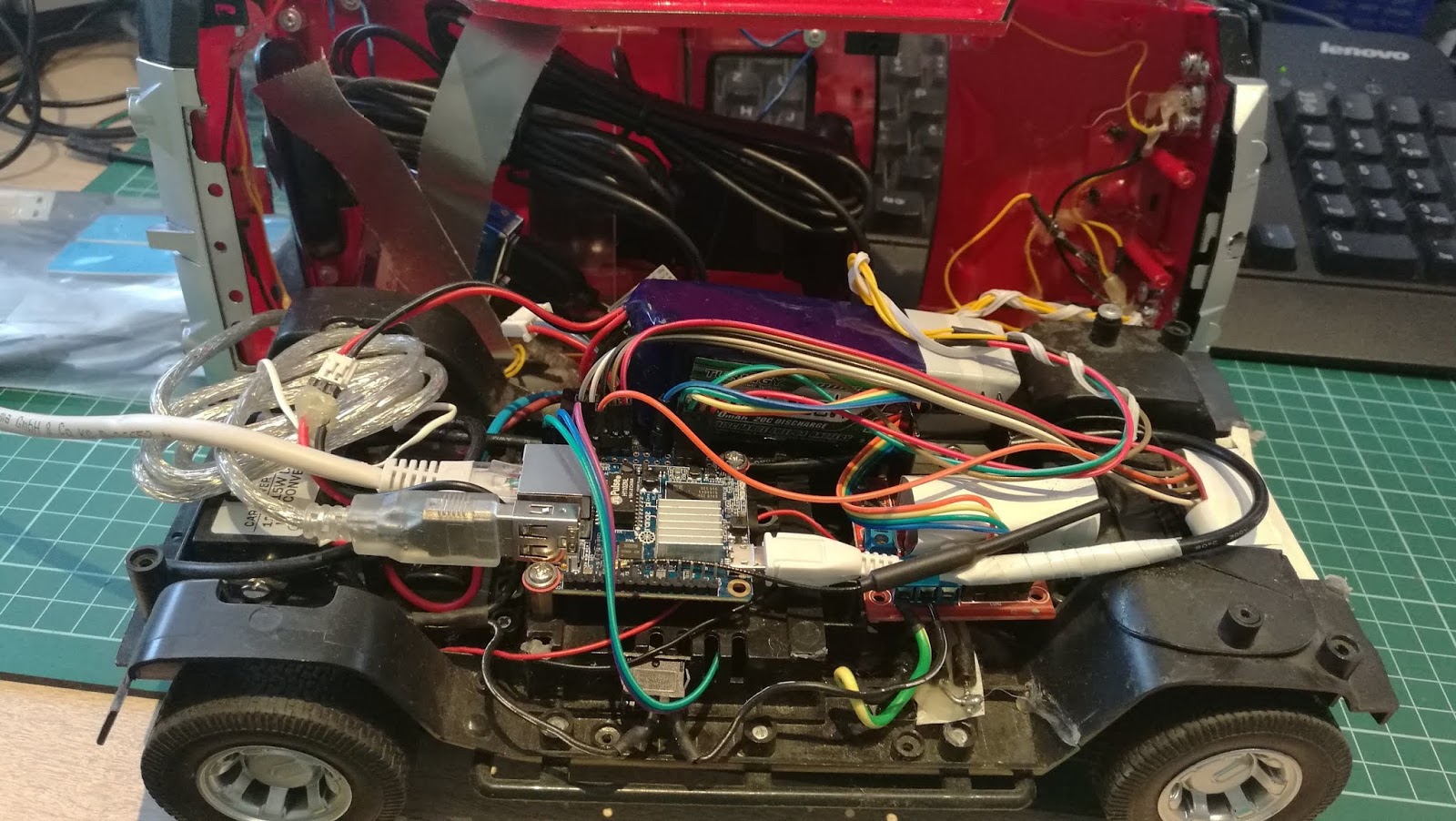
The car now looks like this:

With everything added...

GPIO port does not have pins, so you need to solder them yourself. I have soldered seven pins (4 for the motor control, 2 for +5V/GND, and one for the signal which turns on/off headlights). You can see those seven pins on the top right corner of the picture above.

Next came the software. I want to state that the armbian support for the Orange PI is perfect. Everything works out of box. When I have configured the WiFi to connect to my home router, I was able to install all the software via SSH.

First I had to install the GPIO support. I have dowloaded and installed the orangepi_PC_gpio_pyH3 library, made by the duxingkei chow:

https://github.com/duxingkei33/orangepi_PC_gpio_pyH3

This library is similar to the one I have on the Raspberry Pi. Not the same - just similar enough.

The next step was to install the mjpeg streamer. I have installed it, but it could not run, saying that the libjpeg is missing. The only way I could make it work was to manually download the libjpeg8_8d1-2_armhf.deb file and to install it from that .deb file.

Next came the new kind of problem: mjpeg streamer crashed with this misleading stupid error message, when I tried to stream from two cameras at the same time:

Unable to start capture: No space left on device...

This does not have anything with the free drive space. It simply says that the complete bandwidth of the USB controller is consumed by the first web cam and it cannot stream from the second web cam. It simply cannot work with two Logitech C170 cameras.

I have tried to set the number of quirks for the driver, but it didn't work.

Fortunately, I had one Logitech C210 web cam (lower resolution - lower bandwidth) and that was good enough for the poor USB controller on the OPI Zero: one C170 (forward cam) and one C210 (rear cam).

The WiFi antenna is not so powerful as I have hoped, but it indeed works better than the small Realtek USB dongle which I had previously. The Ralink-based dongle and antenna I have described on my first post works the best, but I already have the built-in adapter and the antenna, so I will stick to that one.

That is about it. I am very satisfied with the Orange PI. I have tried both Lite and Zero boards, and they work excellent, considering the price and features. The only drawback of the Zero model is its limited USB bandwidth and the high core temperature. But, I can live with it...

понедељак, 8. мај 2017.

Toy Car v2.0

New version of the RPI-driven car

This is a followup of my previous posts: this and this.

I wasn't satisified with my previous build of the car. The bunch of wires was sticking all around the car. More important, the car just had a chassis with everything thrown on it. I wanted to have a complete car (with panels, headlights, etc.). That idea required to cut some wires, to solder instead of connect, to glue those wires with the plastic gun and so on. 

The result is here:


Here are some snapshots:
It looks nice, doesn't it?

I managed to put everything inside the car. Cameras, too.
 The front camera
 The rear camera

I started with the chassis. But this time, I have cut the wires to the appropriate length, used shrinking plastic insulator and screwed some components on the chassis:
The car inside looks neat now

I have used existing switch (from the original car setup - bottom left corner) to turn on/off the car. The switch is connected to the battery connector, so it controls the whole car. Now, when I want to use the car, I have just one connector to connect to the battery (top right corner of the photo).

The final assembly looks like this:
Added USB cams, headlights, A/D converter and serial port

I have ordered Orange Pi Zero to put instead of Raspberry Pi. I will write my experience with it when it arrives.

недеља, 15. мај 2016.

Added Headlights to the toy car

Added Headlights to the toy car

This is a followup of my previous post.
The next post is this.

I have had some spare time, so I decided to add front headlights to the toy car. I have used white LEDs:


I have connected LEDs to two GPIO ports (GPIO 21 and GPIO 20) and added the following net protocol commands to turn them on/off:

  • FLL - forward left light on
  • FRL - forward right light on
  • FLL! - forward left light off
  • FRL! - forward right light off

The Python code that receives commads over net is this:

elif text == 'FLL':
  GPIO.output(PORT_FLL, 1)
elif text == 'FRL':
  GPIO.output(PORT_FRL, 1)
elif text == 'FLL!':
  GPIO.output(PORT_FLL, 0)
elif text == 'FRL!':
  GPIO.output(PORT_FRL, 0) 

Here is the movie in which I turn on/off lights:


уторак, 9. фебруар 2016.

Raspberry Pi drives a toy car

Playing with Raspberry Pi

Followups:
added headlights to the car

I have used the Raspberry Pi in this project to control the toy car. I have a long history of remotely controlling stuff. Almost thirty years ago, I have made a board with relays to remotely control the toy car using ZX Spectrum 48 computer. At that time, I have purchased Z80 PIO chip, made a PCB board and soldered transistors, resistors and relays so I could drive the wired-controled toy car.

Last couple of years I was thinking of doing the same, but with the wirelessly-controlled car. I didn't want to use existing electronics and remote control that came with the toy car. I wanted to control the car using my computer.

I was looking at the old remotely controlled car which my kids used to play with. All the electronics was either broke, or missing. I just had the chassis with two motors: front to steer the car left/right and the back one to move the car forward/back. I figured out that I could use that car to play with. All I had to do was to get some controller and to wire that controller to some small computer that could be placed on the car. I was thinking of putting the smart phone on the car, but then the Rapspberry Pi came. Pi is much better choice, since it already has GPIO ports, while smart phones need some extra hardware (for example, the Android has IOIO hardware for that purpose).

So, this was my initial plan: get the Pi, get the controller, mount both on the car and make some software which would allow me to drive the car using my PC, or smart phone, by sending commands via WiFi. If I could mount some USB web cams on the car, even better.

This is the initial result:


The first car

I have purchased the controller based on the L298HN chip and placed that on the chassis:
It is quite easy to control the car using this piece of electronics. There are four pins at the lower right corner and they are used to control two motors: first two pins control the left/right motor, while next two pins control the forward/back motor.


The second car

I have purchased a Raspberry Pi to control the car. When it arrived, I have placed it on the car, but the car could not drive on carpets because the wheels were too small. So I bought a new toy car with bigger wheels and stripped all the electronics:

This was the initial configuration:
There is a LiFePo4 battery, voltage converter to 5V, with two female USB connectors, a Pi, and a driver. The battery has three cells, and gives 9.9V. I have put three diodes in series to lower the voltage for the motors (quick&dirty solution).

I have plugged the USB WiFi dongle into the Pi, so could I connect it to my home network. That way, I could send commands from my PC or smartphone and therefore control both motors (drive the car).

The first thing I did was to copy the Python test program to the Pi to see if I could control motors using the Python code:

#!/usr/bin/env python

import RPi.GPIO as GPIO
import time 

PORT_BACK = 26
PORT_FORWARD = 19
PORT_LEFT = 13
PORT_RIGHT = 6

GPIO.setmode(GPIO.BCM)
GPIO.setup(PORT_FORWARD, GPIO.OUT)
GPIO.setup(PORT_BACK, GPIO.OUT)
GPIO.setup(PORT_LEFT, GPIO.OUT)
GPIO.setup(PORT_RIGHT, GPIO.OUT) 

GPIO.output(PORT_FORWARD, 1)
time.sleep(1)
GPIO.output(PORT_FORWARD, 0)

GPIO.output(PORT_BACK, 1)
time.sleep(1)
GPIO.output(PORT_BACK, 0)

GPIO.output(PORT_LEFT, 1)
time.sleep(1)
GPIO.output(PORT_LEFT, 0)

GPIO.output(PORT_RIGHT, 1)
time.sleep(1)
GPIO.output(PORT_RIGHT, 0)
GPIO.cleanup() 

As you can see, it is quite easy to control motors using Python code on Pi. All you have to do is to send 1 to the port to turn on the motor, and 0 to turn it off.

The next thing was to make a Python application that would be a TCP/IP server. It would wait clients to connect and then would wait for commands, in form of strings. Clients would be either PCs, or smartphones. I have created a simple protocol to control the car. It is text-based and clients just send short strings which Python server receives, parses and executes. Here is the list:
  • F - turn on the forward/reverse motor to go Forward,
  • B - turn on the forward/reverse motor to go Back,
  • x - turn off the forward/reverse motor,
  • L - turn on the left/right motor to go Left,
  • R - turn on the lett/right motor to go Right,
  • X - turn off the left/right motor,
  • exit - client disconnects,
  • shutdown - shutdown the Pi,
  • reboot - reboot the Pi.
The client application can send combinations like: 'FL', or 'BL', meaning 'move forward and left', or 'move backwards and left'.

Then I have added two web cams: one for the front view, and the other one for the rear view:

I have installed the mjpegstreamer application which streams live webcam videos from both cams on the web server (two ports:8080 and 8081).

Then I have upgraded my client applications (both Android and Java Swing) to work with live streaming coming form the Pi. Both applications can connect to the Python server and mjpegstreamer at the same time. They show the live video stream from both cams, and send commands from the keyboard, or gamepad to the Python server:

Android app

Java Swing app

Schematics

Here is a simplified schematics:
Very simplified schematics

WiFi dongle problem

The USB WiFi dongle which people usually buy for the Pi has very small antenna (Realtek RTL8188CUS chipset). That antena is so small, that my car used to lose the WiFi connection in rooms not close to the home WiFi access point. That is why I have purchased another WiFi dongle, but with the bigger antena on it. However, this one had the Ralink chipsed, instead of Realtek. That was the problem since there was no support for the Ralink-based WiFi dongles in the Linux kernel prior to v4.0 (all this happened last year). So I had to make&install Linux kernel driver for it... Not the fun stuff. When the support for the Ralink dongles finally arrived (with the 4.0 kernel), I was able to use the dongle without building kernel drivers. Currently I have a Linux kernel v4.0 on my Pi, and the dongle works out of the box.

USB and Power problem

On my Pi I had three USB ports filled with devices (one WiFi dongle and two webcams). Pi cannot provide enough power on its four USB ports for all the devices I plugged in, so I had to put the powered USB hub. I had a spare female USB connector from the 5V voltage converter (the first one was used to power up the Pi). I have connected the power input of the USB hub to that other female USB connector:


The powered hub is below the webcam (the blue box). All USB devices are now plugged in it.

The current configuration looks like this: